Monday, 14 October 2019

Apple Using Tencent’s Safe Browsing for Malicious Website Warnings in Safari on iOS 13 Which Logs IPs


Apple has primarily always relied on Google’s Safe Browsing technology for Safari’s ‘Fraudulent Website Warning’ feature. However, it seems that starting with iOS 13, Apple is using Tencent’s Safe Browsing technology as well to check and prevent users from visiting fraudulent websites.

The problem here is that for the fraudulent website warning to work, Apple needs to share your browsing history with Google. And Tencent. While the URLs shared are generally hashed, Google and Tencent will also log a user’s IP address during the process. Many people might be fine sharing their browsing history with Google, but sharing anything with a Chinese company might make many users uncomfortable.

Below is how Google’s Update API for the Safe Browsing tech works in the background:

To address these concerns, Google quickly came up with a safer approach to, um, “safe browsing”. The new approach was called the “Update API”, and it works like this:


Google first computes the SHA256 hash of each unsafe URL in its database, and truncates each hash down to a 32-bit prefix to save space.


Google sends the database of truncated hashes down to your browser.


Each time you visit a URL, your browser hashes it and checks if its 32-bit prefix is contained in your local database.


If the prefix is found in the browser’s local copy, your browser now sends the prefix to Google’s servers, which ship back a list of all full 256-bit hashes of the matching URLs, so your browser can check for an exact match.

At each of these requests, Google’s servers see your IP address, as well as other identifying information such as database state. It’s also possible that Google may drop a cookie into your browser during some of these requests.Tips:

Recover Photos, Videos, Contacts, Messages, Notes, Call History & Calendar from iPhone. Recover Lost or Deleted Data from Your iPhone in Just a Few Clicks. Free Download Now. Download Free Trial Now. Do-It-Yourself Software. 3 Million+ Happy Customer.

Also Read:h33t proxy

Another major issue here is that Apple has made this change without informing users about it. One has to go through the fine print to discover it. There is a possibility that Apple is using Tencent’s Safe Browsing tech only for Mainland China users since Google is not available in the region, but if that’s the case, the warning should not show up for iPhone users in the United States. Additionally, if Apple has made this change recently with iOS 13, it should have explicitly informed users about it. The company has also not detailed if it is doing anything to protect the privacy of its users in this scenario which has always been one of its priorities.

Apple has bent a lot of its own rules just to please the Chinese government. While that is not the case here, many iOS users are simply not going to be comfortable knowing that a Chinese company is possibly logging their IP.Also Read:Download All iCloud Photos to PC/Mac

Also Read:Best free drive cloning software


[Via Crytpgraphy Engineering]

Tuesday, 30 July 2019

Beginners Can Take Flight With This Ryze Budget-Friendly Drone [Deals Hub]


Ready to take flight? Flying drones is fun, but it can be overwhelming for those just getting started. The Ryze Tech Tello Quadcopter Powered by DJI is the perfect solution for novice pilots looking to get in on the action. And though many drones can break the bank, this beginner-friendly drone is available now in the iPhone Hacks Deals Hub for just $99 or get the Ryze Tech Tello Boost Combo Quadcopter for just $149.

The DJI Tello Quadcopter is an ideal introduction for beginner flyers, allowing you to fly safely with auto takeoff and landing and low battery protection. Just toss the DJI Tello Quadcopter into the air and you’ll be flying high, enjoying the ride via a controller, the Tello app on your smartphone or even a VR headset. While airborne, your DJI Tello Quadcopter captures smooth and stable footage with electronic image stabilization, and those videos can be transmitted in HD 720p resolution. And once you’re feeling fancy, you can even perform aerial tricks with ease thanks to its tiny form factor and smart Intel processor.

Also Read:best browser games

Also Read:music torrents

Thursday, 11 July 2019

2020 iPhones to Feature a Smaller Notch


If the latest investor note of reputed and reliable analyst Ming-Chi Kuo is to be believed, Apple will reduce the size of the notch on its 2020 iPhones. The company is planning on using a smaller front camera system for the 2020 iPhones which would help reduce the size of the notch and increase the screen-to-bezel ratio.

Additionally, the analyst believes that Apple will be using a 7P lens for the rear camera of the 2020 iPhones. This should help improve the overall image quality, though the margin of improvement will depend on the quality of the lens used.

The report also claims that by 2021, Apple will get rid of the notch completely and instead switch to in-display fingerprint technology. This seems a bit odd as Apple has invested heavily in its TrueDepth camera system and a number of features in iOS rely on it. However, for Apple to release a truly notch-less iPhone, it would have to come up with a breakthrough technology to hide the TrueDepth camera components below the display.

A number of Chinese Android OEMs have already started releasing phones without a notch using novel tech like pop-up camera, flip camera, and more. Once the in-display camera technology is ready, most major OEMs will jump on the bandwagon to release true full-view smartphones.

The reduction of the notch would mean that the 2020 iPhones would feature a new design. This is something that other rumors have also claimed regarding the 2020 iPhones. The company is expected to refresh its iPhone lineup in 2020 with new display sizes and switch entirely to OLED displays. It is also expected to launch at least two iPhone variants with 5G. Given such major changes, it is almost a given that the 2020 iPhones will feature a new external design.

It looks like the 2020 iPhone lineup is shaping up to be a major release with some major external changes. Are you looking forward to its release?

[Via MyDrivers]

Sponsor ads:

Gihosoft RePicvid Free Photo Recovery Software provides a free photo recovery software for windows to help users recover the deleted or lost photo for free.

If you lost data after you updated to a new iPhone, you can always use Gihosoft iPhone Data Recovery to get the data back from the old iPhone or backup.You may also like: iphonerecovery.com

Sunday, 23 June 2019

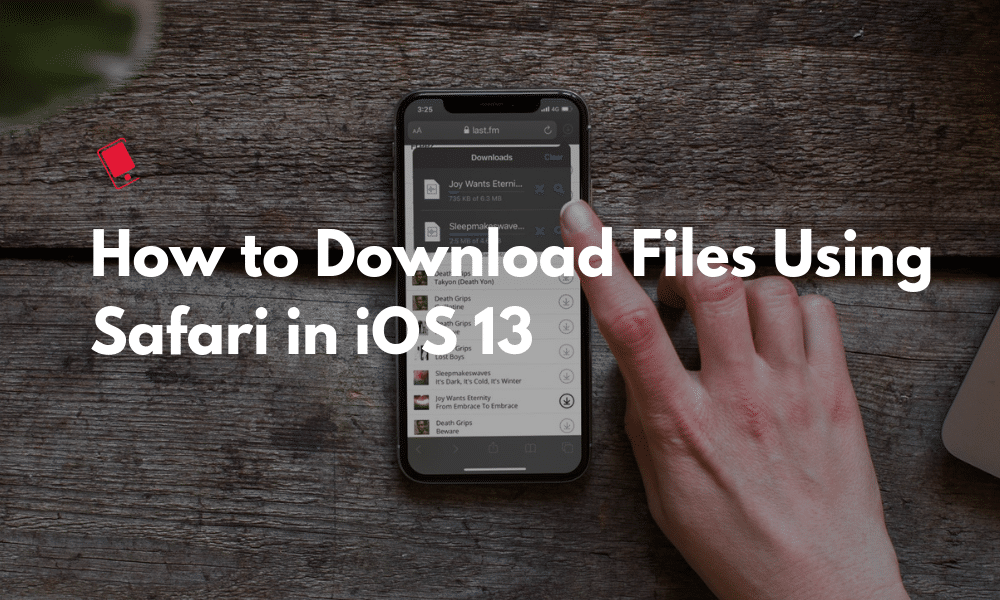
How to Download Files Using Safari on iPhone and iPad


Dreams do come true. Well, at least if wildest imagination is limited to download large files on your iPhone or iPad using Safari. Well, in iOS 13 and iPadOS 13 you can actually do that. Safari now has a built-in download manager where it lets you download files straight to the local storage (or iCloud Drive). Here’s how you can use this feature to download files in Safari on iOS 13 and iPadOS 13.
Safari Download Manager in iOS 13 and iPadOS 13: Everything You Need to Know

As with many features in iOS, the download manager in Safari is hidden until it’s conjured (or called up). Unlike Safari on the Mac, you won’t find a download button in the top toolbar.

Step 1: Go to a page which contains the download link and tap on it.

Step 2: You’ll see a popup asking if you want to download the file (you’ll see the full name of the file but you won’t see the file size). Here, click on the Download button.


Step 3: Now, you’ll see a new Downloads icon in the top-right corner of the Safari app, next to the URL field. Tap on it and you’ll see all available downloads. And yes, you can download multiple files at the same time.

Step 4: From here, you can see the progress of the download. You’ll be able to see the file size, but it won’t show the download speed. If you want to stop or pause the download, you can tap on the X icon. If a paused download can be resumed, you’ll see the Resume button as well.


Step 5: To delete a download, swipe left on it and tap on the Delete button.

Step 6: Once the download is finished, you’ll be able to tap on the file to open it in the Files app. And once you can see it in the Files app, you can preview it or open it if it’s in a supported format (MP3, PDF, Images and so on). And if not, you can tap on the Share button to open it in a compatible app.


This means that you can now download any file in Safari, without the need for a third party download manager and then you can use Files to open the file in any supported app. For example, you can download a DOCX file from an online source and then open it in World app via Files. And now that Files app supports external storage in both iPhone and iPad, you can actually transfer a downloaded file to a flash drive (this even works for sending books to Kindle).
How to Change Safari’s Download Folder on iPhone and iPad


Once you start using the download manager, the first thing you’ll want to do is to change the default download location. By default, every download goes directly to a Downloads folder in iCloud Drive. Now that’s great if you’re on a 50GB or 200GB plan. All your downloads will be available across all your Apple devices.

But if you’re on the free 5GB plan, a couple of downloads will take a major hit to your available space.

It’s best to change the download location to a local folder on your iPhone and iPad (And finally it’s great that Apple not only lets you choose local storage as a downloading location, it also lets you create and move folders in local storage).

To change the download location, go to Settings > Downloads (in General section) > On my iPhone. This will switch to a Downloads folder on your local iPhone or iPad. But you can go a step further and change this location as well by going to the Other option.
How to Download Links Without Opening Them on iPhone/iPad


If you don’t like waiting till the link opens in a new tab, you can actually skip the whole process thanks to the new Peek feature that’s available across all iOS devices now. Just tap and hold on the link and select the Download Linked File button. This will start the download process in the background.
Yes, This Works for Large Downloads in the Background

You can even download files that are a couple of gigabytes on your iPhone or iPad using this feature. This works even in the background, with the iPhone locked and with the screen off. This is something you couldn’t do previously using third-party apps.

I tested this using a 2GB iOS 13 beta file from Apple’s servers and the process was slow at the start but after a couple of minutes, it completed the while 2GB download in the background, on its own.
Learn More about iOS 13 and iPadOS 13

This is just one small change in iOS 13. There a lot more like this. We’ve compiled the top 25 changes in iOS 13 that you should know about.

If you’ve got the time (and the curiosity), take a look at our mega iOS 13 new features list (100+) to find out every big and small feature in the upcoming iPhone and iPad update.

Read more:Convert Image to Video (Online/Mobile/PC)

Read more:10 Software to Test Hard Drive Speed 2019

Read more:Go Live on Tik Tok/Musical.ly in 2019

Thursday, 13 June 2019

How to Create a Custom iMessage Profile in iOS 13


In iOS 13, Apple allows you to create a standardized iMessage profile that includes your name and photo – or an Animoji/Memoji – which accompanies the messages you send to friends so that they know who you are.


The idea behind the new feature is that contacts in the Messages become more easily identifiable, similar to the way WhatsApp and Facebook Messenger contacts have recognizable profile pictures.


If you choose to use a Memoji as your profile pic, you'll be happy to learn that iOS 13 also provides options for customizing it, including pre-selected poses and background colors.


How to Add a Custom Message Photo Profile in iOS 13


Launch the Settings app on your iPhone or iPad.


Tap Messages.


Tap Share Name and Photo.


To use a photo in your new profile, tap the Camera button and take a picture of yourself. Alternatively, tap All Photos to choose an existing picture from your photo albums.


Once you've selected a picture, you'll be given the option to move and scale it in the circular frame. Click Choose once you're done.


You'll then be asked to select a filter to apply to the photo. Alternatively, tap Original to skip this step.


Tap Done.


Tap the empty fields alongside your profile picture to enter your first and second name.


Make sure the Share Name and Photo switch is toggled to the On position.


Choose from one of the automatic contact sharing options – Contacts Only, Always Ask, or Anyone.


How to Add a Message Animoji/Memoji Profile in iOS 13


Launch the Settings app on your iPhone or iPad.


Tap Messages.


Tap Share Name and Photo.


Select an Animoji from the default list. If you've created a Memoji, it will also appear in the list for you to choose.


In the next screen, select a pre-defined Pose.


Move and scale the image in the circular profile frame, then tap Choose.


Select a background color.


Tap Done.


Tap the empty fields alongside your profile picture to enter your first and second name.


Make sure the Share Name and Photo switch is toggled to the On position.


Choose from one of the automatic contact sharing options: Contacts Only, Always Ask, or Anyone.

Sponsor ads:

Gihosoft RePicvid Free Photo Recovery Software provides a free photo recovery software for windows to help users recover the deleted or lost photo for free.

If you lost data after you updated to a new iPhone, you can always use Gihosoft iPhone Data Recovery to get the data back from the old iPhone or backup.You may also like: iphonerecovery.com

iPhone Manager:Get the ultimate Gihosoft iPhone Manager. Free download for PC/Mac.


In iOS 13, you can also turn your Memoji into stickers, which can be used across numerous apps like Messages and Mail. Memoji stickers and the Memoji editor are also supported by all devices with an A9 chip or later – not just those with TrueDepth cameras.

Wednesday, 5 June 2019

Free Download Fastboot for Windows/Mac


Free Download Fastboot for Windows/Mac

ADB and Fastboot work hand in hand in conjunction and they are incomplete without one another. You can easily get Fastboot to work on Windows/Mac by download and run Minimal ADB and Fastboot created by Snoop05. It is very easy to install and use. You can carry out Fastboot Tool download for Windows/Mac by following the steps below.

Step 1 Download ADB Fastboot Tool installer package on your Windows computer or Mac.

Step 2 It may be in the ZIP format, unzip the contents and double click on exe installer.

Step 3 Click on "Run" option to grant access if a security warning pops up.

Step 4 The installation wizard will now commence. On the first screen click on "Next".


Step 5 Let the default location for storing this tool be the same as suggested and again click on "Next".

Step 6 Follow the subsequent screen instructions and the installation will begin.

Step 7 Once the installation is completed, enable USB debugging on your Android device and connect to your Windows computer or Mac system with the help of a USB cable.

Step 8 Navigate to the location where the Fastboot Tool is installed and press the "Shift" key and right click.

Step 9 Open the command prompt window and key in "adb devices". If the list of all the connected devices is displayed, the installation of Fastboot Tool is successful, if not you would have to try again.


This is a simple way to download the Fastboot Tool on your Windows/Mac system and use it to advance the functionalities of your Android device.
Part 4: Common Fastboot Commands

Once you have successfully installed Fastboot Tool, you can use the commands to bring about the changes in your Android device. Here are some of the most commonly used Fastboot commands which can help you get started with using this tool.
1. Unlock/Relock your Bootloader:

fastboot oem unlock/fastboot oem lock
2. Flash a Custom Recovery:

fastboot erase recovery

fastboot flash recovery <recovery-file.img>
3. Flash a Custom ROM:

fastboot erase system -w

fastboot erase boot

fastboot update <your-file.zip>
4. Erase an Individual Partition:

fastboot erase <partition>
5. Reboot the Phone

fastboot reboot

Also Read:15 Game Torrenting Sites to Download Games in 2019

Also Read:5 Best Free Backup Software for Windows

Also Read:KissAsian to Watch Asian Movies

Also Read:5 Best Websites Like Afdah for You to Stream Movies in 2019

Sunday, 19 May 2019

Top 9 Ways to Fix Google Maps Voice Not Working on iPhone


Phase 2. Top 9 Ways to Fix Google Maps Voice Not Working on iPhone

After creating a backup of your data (either through iTunes/iCloud or iMyFone D-Back), you can try the solutions explained hereafter.
Way 1. Enable Voice Navigation in Google Maps

The simplest fix to address this issue is enabling voice navigation in Google Maps.

Step 1: Open Google Map on your iOS device.

Step 2: After starting the navigation, you will see sound option (top right corner of the screen). Tap to enable voice.


Way 2. Check Bluetooth Connection

If your iPhone is paired with the car speaker and you are away from the car, you cannot hear voice assistance. So, follow the steps below.

Step 1: Go to Setting and select Bluetooth option so you can see currently paired devices.

Step 2: Just disconnect the Bluetooth connection so Google Maps will start to use iPhone voice.


Way 3. Redownload Voice Direction

If your device doesn’t have downloaded voice directions on it, you cannot necessary hear the voice. Under such instances, the solution is to download voice directions. Steps below show how to download voice direction.

Step 1: Connect the device to internet.

Step 2: Then, click on the option called get directions. Once the process is completed, you can start Google Maps as you would do usually.
Way 4. Check Your iPhone Volume Level

Sometimes, you may not be able to hear Google Maps voice because the volume is down to the minimum. To fix it, you can easily press Volume Up button and then increase the audio level.


Way 5. Pause Spoken Audio

Pausing spoken audio is another simple fix you can use. If you were listening to podcasts instead of listening to music, you may not be able hear the voice of Maps Navigation.

Step 1: Go to Settings and select Maps option.

Step 2: Tap on the option Driving and Navigation.

Step 3: Check Pause Spoken Audio option which is can be found under Navigation Voice Volume.


Way 6. Force Close and Restart Google Map

You can try restarting the Google Map app to get it worked once again.

Step 1: Perform a double press on the iOS device’s home button. If it is an iPhone X, go to recently used apps through swiping the screen (as it doesn’t have a home button).

Step 2: Find Google Map and swipe left to close it. If necessary, you can close the other running apps.

Step 3: Now that Google Maps is closed, you should open it once again to see if it works properly.


Way 7. Clear Your Device's RAM

Clearing the RAM might solve some minor issues related to Google Map’s functionality. This cannot be fixed just by restarting the app.

Step 1: First of all, unlock your iOS device.

Step 2: Press and hold the power button until you see “Slide to power off” option.

Step 3: Now release the power button and then press and hold home button for about five seconds.
Way 8. Restart Your iPhone

If your device is still giving troubles, you should try restarting the device and see if the issue is solved.

For iPhone 8 or older:

Step 1: Press and hold the Top button so you can see the slider.

Step 2: Drag the slider and turn the device off.

Step 3: Now, press and hold the Top button once again to see the Apple logo and get the device restarted.

For iPhone X or later:

Step 1: Press the Side button with any volume button together and hold them to see the slider.

Step 2: Drag the slider and turn the device off.

Step 3: Once the device is turned off, press and hold the Side button once more so you can see the Apple logo.


Way 9. Fix Google Maps Voice Not Working on iPhone without Data Loss

Sponsor ads:

Gihosoft RePicvid Free Photo Recovery Software provides a free photo recovery software for windows to help users recover the deleted or lost photo for free.

If you lost data after you updated to a new iPhone, you can always use Gihosoft iPhone Data Recovery to get the data back from the old iPhone or backup.You may also like: iphonerecovery.com

If you use android phones, please choose Gihosoft Android Data Recovery.With Gihosoft Android Data Recovery, no longer afraid of data loss!

iPhone Manager:Get the ultimate Gihosoft iPhone Manager. Free download for PC/Mac.

Apple Using Tencent’s Safe Browsing for Malicious Website Warnings in Safari on iOS 13 Which Logs IPs

Apple has primarily always relied on Google’s Safe Browsing technology for Safari’s ‘Fraudulent Website Warning’ feature. However, it seems ...